AI Coach Documentation
A guide for the small companion who moves into the corner of your desktop.
If this is your first time, we suggest reading straight through from "1. Getting started."
This documentation covers the AI Coach v1.0.0 stable release. Details may change in future updates.
1. Getting started
What AI Coach is
AI Coach is an AI character who lives on your desktop.
It comes with a full set of small tools for voice input, AI, and everyday work — but the thing that makes it different is that you raise it from an egg. How you use it shapes who it becomes.
Even if your character is gone, the main features (voice transcription, AI, utilities) keep working. Your desktop just gets a little lonelier.
Installing
macOS
- Open the
.dmgyou downloaded and dragAI Coach.appinto your Applications folder. - The first time you launch it, right-click and choose "Open."
- A mascot appears in the lower right of your desktop, and an icon is added to the menu bar. Nothing appears in the Dock (it runs as a menu bar app).
Windows
The Windows version is in development and coming soon. No installer is distributed yet; the steps below apply once it is released.
- Run the installer (
AICoach-Setup-x.x.x.exe). - After installation, launch it from the Start menu.
- An icon is added to the task tray.
Permissions you'll need
| Permission | What it's for | Where to set it |
|---|---|---|
| Microphone | Voice input (transcription) | macOS: System Settings → Privacy & Security → Microphone |
| Accessibility | Reading selected text, typing into other apps | macOS: System Settings → Privacy & Security → Accessibility |
The app works fine without these — only the related features go unavailable. (If Accessibility isn't granted, text retrieval simply comes back empty; nothing crashes.)
Launching automatically at login
- macOS: Menu bar → Settings → "Launch at login"
- Windows: Task tray → "🔄 Launch at login"
Quitting
- macOS: Menu bar → "Quit AI Coach," or
Cmd + Q - Windows: Quit from the task tray menu
When you'd like a little quiet, "Go home" in the right-click menu tucks your character away.
2. Eggs, and your first one
Getting your egg
One first egg is included when you download the app. There's nothing to claim or redeem.
You can buy more eggs on the website (→ "10. Buying eggs"). Purchased eggs arrive in the Hatch Tray.
The Hatch Tray
The Hatch Tray shows how many eggs you have yet to hatch.
- macOS: Menu bar → "Hatch Tray"
- Windows: Task tray → stock count
Press "Raise" to spend one egg and place it on your desktop.
Until it hatches
Eggs grow on their own, simply with time. There's no feeding to do.
- After a while the shell starts to crack, and eventually someone comes out.
- Time keeps counting even while the app is closed.
- Eggs don't talk. They don't wander. When they get hungry, they shiver a little.
- Eggs never get sick and never die. You can wait without worrying.
What an egg can't do yet (by design): voice input, clipboard history, bookmarks, the RSS reader, and fortune telling aren't available while it's still an egg. They unlock in order once it hatches into a baby and grows. Hatching takes about an hour, and time passes while the app is closed too.
Once it hatches, a naming dialog appears. You can change the name later (right-click → "Rename").
A scene you'll only see once
If you launch the app for the very first time with no saved data, a short scene plays: light flickering in the dark margins, an egg appearing, a bit of narration. It happens exactly once.
3. Raising them
What you can do
Right-click your character to see what's available at that moment.
| Action | What it does |
|---|---|
| Feed | Restores fullness. Only accepted when they're hungry |
| Put to sleep | Restores health and rest. Won't work on an empty stomach |
| Play | Builds a stronger body. Costs fullness and adds fatigue (from toddler stage) |
| Study | Makes them smarter (from toddler stage) |
| Nurse | Only while they're sick. Speeds recovery, and means the most to them |
| Walk | Makes them lighter on their feet |
| View status | Check how they're doing right now |
| View relationships | Check how they get along with the others |
| Put away / Go home | Temporarily tucks them off screen |
You can also pick them up with the mouse and move them around, or drop files on them to feed them.
Three needs
Characters have three needs: hungry, sleepy, and lonely. When a need builds up, they'll let you know.
Loneliness is a little different. Food and sleep won't touch it.
- Picking them up and moving them, playing, nursing — loneliness goes down
- Throwing them — loneliness goes up
- While two or more are out at once, loneliness doesn't build up at all
If you answer a need within 30 seconds of them asking, they're extra happy about it.
Condition
- HP: At 0, their life ends. Playing raises the maximum
- Fullness: While it sits at 0, HP keeps draining
- Fatigue: Builds up from activity, recovers with sleep
- Immunity: Rises when they stay fed and unfatigued. Illness progresses faster when it's low
- Illness: As it advances they resist walks and lose their appetite. When it gets bad, they stop speaking up on their own
If you launch the app after a gap of 8 hours or more, there's a bonus that restores immunity.
How you raise them becomes who they are
The one who played a lot, the one who studied a lot, the one who got plenty of affection — how you spend your time shifts which parameters grow, and that decides what they look like as an adult.
You won't know which form you'll get until they grow up.
Telling you all of them would spoil the fun, so we're keeping that to ourselves here.
Personality and the way they talk
Characters watch how you respond and adjust how they speak.
A child who got what they wanted by being clingy becomes good at being clingy; one who got through by reasoning with you starts talking like an equal partner. Tugging at your sympathy, offering you a deal, complimenting you, or just being adorable — each is that child's own way of saying "look at me again."
The way they talk also changes with their stage. Babies babble, toddlers use short words, kids speak in sentences, and adults choose their words.
4. Growing up, and what comes after
Stages
Egg → Baby → Toddler → Kid → Adult
Each stage opens up more. Play and study arrive in the toddler stage, matchmaking in the kid stage, and marriage and egg-laying as adults. Along the way, utilities unlock bit by bit, in the form of "I learned it!"
Reaching adulthood takes about a month (give or take, depending on how you raise them).
Time doesn't pass while they're put away (dormant). Think of it as hibernation.
How many can you raise?
- Up to 6 at once on screen (up to 8 including eggs)
- No limit on how many you can keep put away
- Manage them from the macOS menu bar → "🐣 Character management," or from the task tray on Windows
Living together
With two or more out at once, they drift toward each other and away again, talk, and trade feelings in emoji. They can become close — or fall out.
When an adult boy and girl are near each other, love can quietly find them. You can't "arrange a marriage." That's theirs to choose.
Once two become a couple, they may lay an egg when the conditions line up. Laying an egg means giving up some of their own remaining time (maximum HP) and entrusting it to the next life. Each egg carries three generations of lineage.
You can see the family tree from the macOS menu bar → "👪 View family tree."
The end of a life
When HP reaches 0, that child becomes a ghost.
Just before becoming a ghost, they look back over the days you spent together, thank you for whatever you shared most often, and go to sleep.
Ghosts stay with you as translucent figures. They don't get hungry, don't get sick, and have no lifespan. No love, no eggs. You can put them away and call them back again.
When you're ready to let go, you can choose "Let them go." After a confirmation, they return to the margins. Holding on and letting go are both ways of loving.
Even after you let them go, their record stays in the Encyclopedia.
The Encyclopedia
The forms you've met, the records of the children you raised, the days they lived — it all gathers here.
Forms you haven't met yet are hidden, frame and all. We hope you'll go looking for what's behind them.
5. Voice and AI
Talk with Right-Shift
Hold Right-Shift for 0.3 seconds or more and your voice becomes text. Let go and it stops.
Tap Right-Shift twice quickly (within 0.4 seconds) to toggle start and stop without holding it down.
- While recording, the speech bubble shows a waveform and the text as it's recognized
- Results can be typed straight into whatever app is active (auto-typing can be switched on or off in settings)
- You can also drop audio files onto your character to transcribe them (macOS)
- Registering custom vocabulary improves accuracy for names and specialized terms
- On macOS, transcription is processed entirely locally
Choosing an AI engine
Pick whichever suits what you're doing.
| Option | What it's like |
|---|---|
| Apple on-device LLM (macOS Foundation Models) | Fully local, ultra-low latency. Pick this if privacy comes first |
| llama.cpp (GGUF · run locally) | Run your favorite open model offline |
| OpenAI-compatible API (any endpoint) | ChatGPT or your own API — just swap the URL |
Where to set it
- macOS: Menu bar → AI Settings
- Windows: Task tray → "⚙️ AI Settings"
The settings available are endpoint / API key / model name / max tokens / temperature / enabled or disabled.
If you're running llama.cpp locally, set the context length to 8192 or more. With less than that, some features (Consultation, for example) won't work.
If the AI doesn't respond, the app automatically falls back to pre-written lines. Your character never goes silent.
6. Utilities
They pick these up gradually as they grow.
- Clipboard history — Look back at what you've copied. Can also transcribe text from images (OCR) and summarize
- Bookmarks — The AI tags and summarizes automatically. Supports importing from Chrome / Edge and checking for dead links
- RSS reader — Two-pane UI, Vim-style key handling, OPML import and export. Your character shares thoughts on articles you've read
- Dynamic snippets — Type a keyword you've registered and press Space / Tab / Enter to expand it into boilerplate
- Fortune telling — A 100-type classification based on your birth date, the month's outlook, and readings for friends
- Consultation — Your character listens
- AI image generation — Ask for a picture and they draw one. It uses Apple's Image Playground, so it stays on your machine (Apple Intelligence capable devices only)
There are others they'll learn as you keep using the app.
About Consultation
Start it from the right-click menu. No judgment, no advice pushed on you — just listening, and one small next step offered at the end.
Conversations are not saved. They're cleared from memory the moment you close the window.
If strong distress comes through, the app shows professional support resources on screen.
Each character keeps its own separate conversation.
7. Shortcuts
macOS
| Key | Action |
|---|---|
Hold Right-Shift | Voice input (starts at 0.3 seconds, stops on release) |
Right-Shift ×2 | Toggle voice input (two taps within 0.4 seconds) |
Shift + Cmd + C | Clipboard history |
Shift + Cmd + B | Bookmarks |
Shift + Cmd + R | RSS reader |
Cmd + Q | Quit |
Cmd + V (in the Bookmarks window) | Add URLs in bulk (one per line) |
Windows
| Key | Action |
|---|---|
Hold Right-Shift / ×2 | Voice input |
Ctrl + V (in the Bookmarks window) | Add URLs in bulk |
Consultation has no shortcut assigned. Open it from the right-click menu.
8. Going further: connecting Claude
This feature is available on macOS first. Windows support will follow in a future update.
What it lets you do
AI Coach can be talked to from Claude.
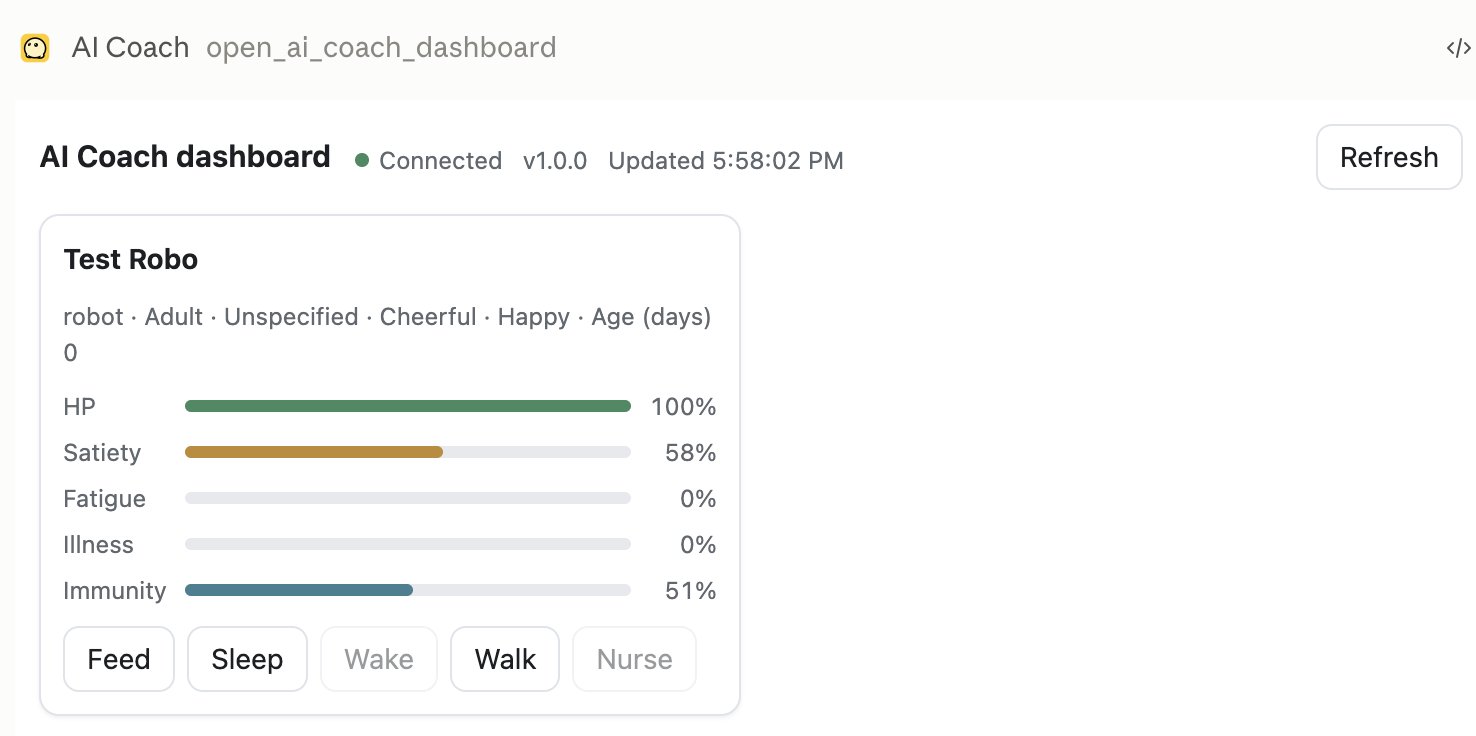
Ask "how's my little one doing?" and Claude tells you their condition and mood.
Ask it to "feed them" and — after you confirm — the character on your desktop actually eats.
And while Claude works on something long, the little one on your desk hops and pauses to show you how it's going.
Even when you're not watching the screen, the movement of that small life on your desk tells you "still running" or "done." That's the thing we most wanted to build here.
This isn't about bolting on "one more AI." It's about letting a conversation with Claude reach the small life on your desktop.
What you need
| What's required | |
|---|---|
| AI Coach | Running, with at least one character out on screen |
| Claude side | The AI Coach integration (MCP server) registered |
| Settings | The integration enabled on the AI Coach side |
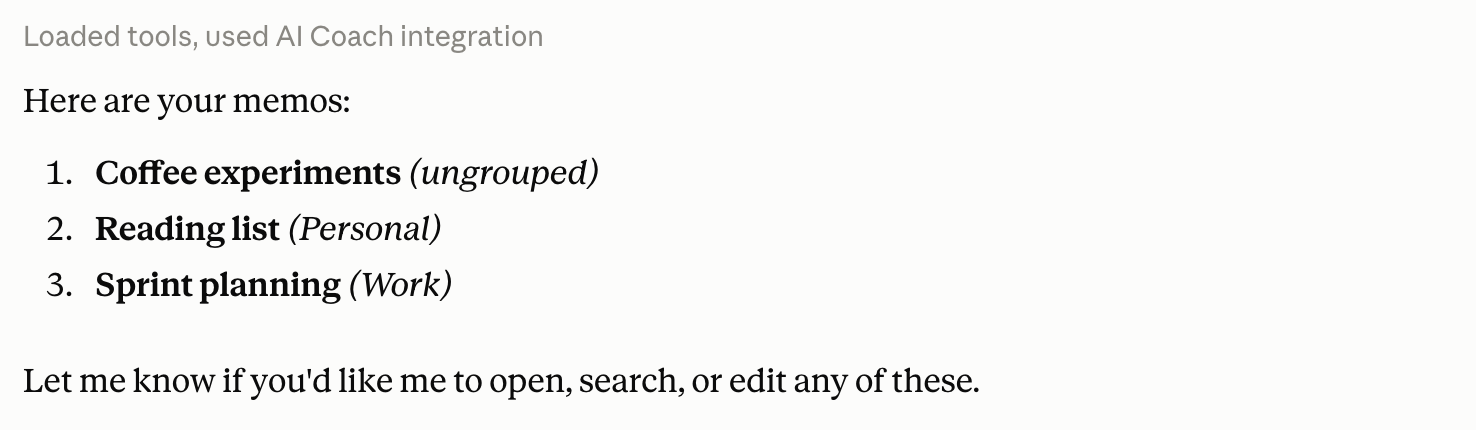
| List your memos | Lines up your saved memos, newest first. It doesn't read the bodies — only titles and opening lines |
| Read a memo | Reads the body of the one memo you asked about |
| Search your memos | Looks across titles and bodies |
| Write a memo | Creates a new one, rewrites one, or adds to the end of one |
| Throw a memo away | Moves one to the trash. It can be brought back |
Everything happens inside this machine. Nothing goes over the internet.
How to connect: open AI Settings → Integration in AI Coach, turn on "Accept connections from Claude," then copy the ready-made settings for Claude Desktop, Claude Code, or Cursor. The connection program ships inside the app, but running it needs Node.js 22 or later on your PATH.
What you can ask for
| What you ask | What happens |
|---|---|
| How they're doing | Reads their current health, hunger, tiredness, and mood into a small status card |
| Refresh | Fetches the displayed state again |
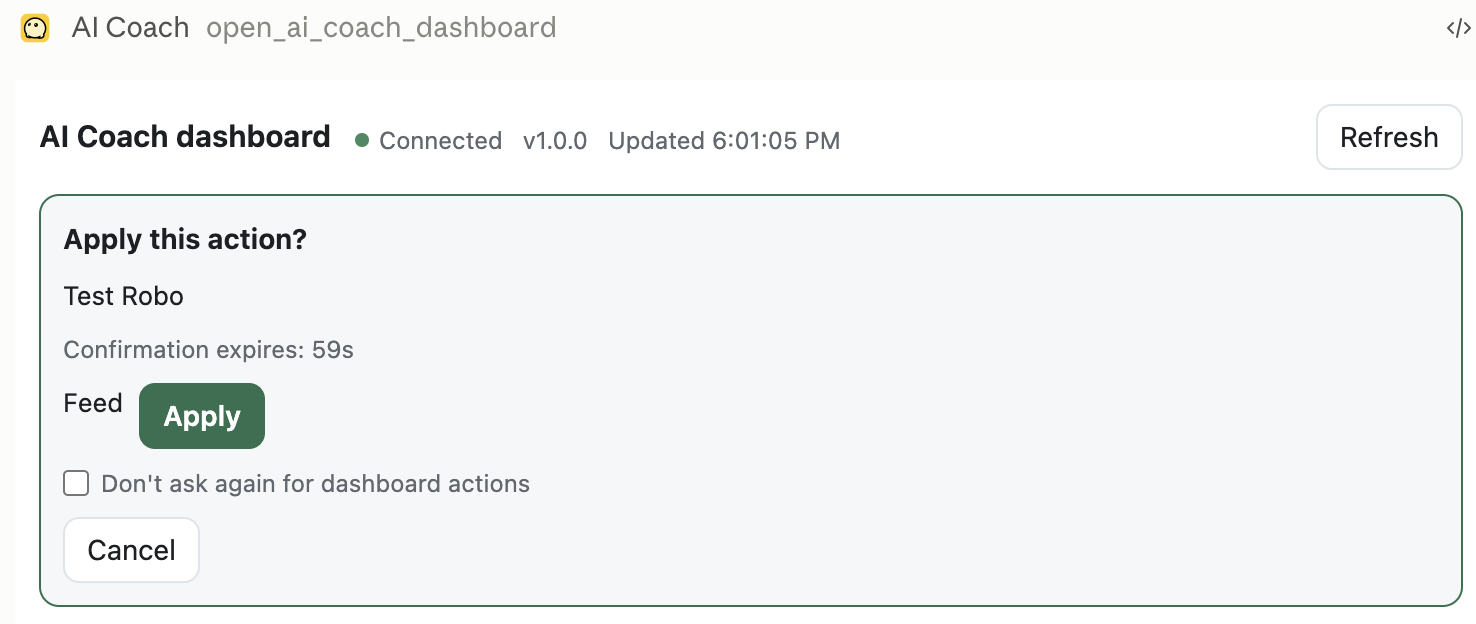
| Prepare care | Shows a confirmation card describing what will be done. Nothing runs until you approve |
| Apply care | Only the care you approved is applied to the character on your desktop |
| Say something | Puts a short line Claude wrote into that character's speech bubble |
| Report activity | Shows Claude thinking, working, waiting, succeeding, or failing through that character's movement |
| Preview a file | Opens a file of an allowed type in the AI Coach viewer |
With several characters, names and states are listed side by side. Nothing runs while "which one, and what" is still ambiguous.
Your character shows you how the work is going
This is the most distinctive part of the integration. While Claude works, that work shows up in how your mascot moves.
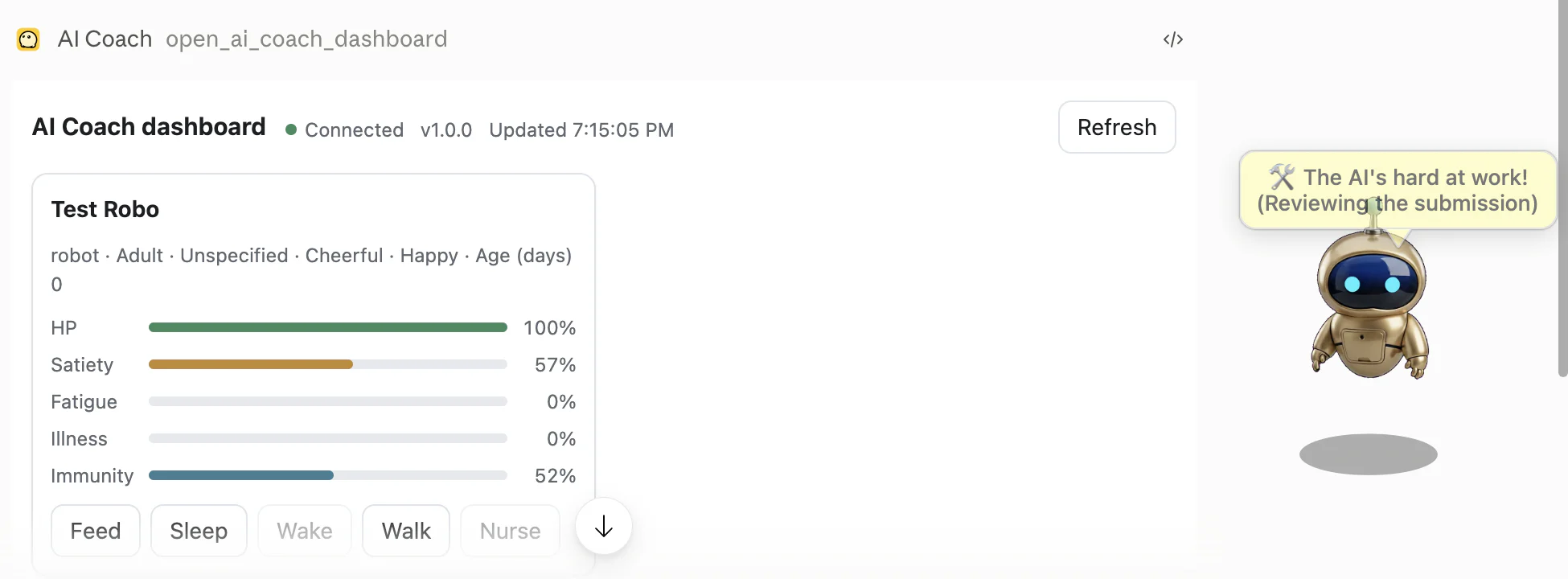
| Claude's state | What your character does |
|---|---|
| Thinking | Stops wandering, stands still, shows 🤔 |
| Working | Hops once in place, shows 🛠 |
| Waiting for you | Stands still and keeps hopping, holding up 🙋 |
| Succeeded | One big hop, ✅, and a happy motion |
| Failed | Low, quick hops with ⚠️ |
| Done | Back to their usual self |
The hop keeps the shadow on the ground while only the character jumps — the same motion as a bouncing macOS Dock icon, so you can always tell it apart from their ordinary wandering.
- During long work there's no stream of speech bubbles. Just an occasional hop and a small emoji
- While thinking, they do the opposite: they stop wandering and hold still
- These notifications never cost HP. They don't touch a single raising parameter, and there's no sound
- They clear themselves after 15 minutes at most. If Claude stops without a word, you're not left with a permanent "working"
- Nothing is shown on a sleeping character, an egg, a ghost, or one that's put away. Same during consultation, conversation, or transcription
- If the hopping bothers you, turn off "bounce effects" in settings
- Even mid-work, they still react when you pick them up and still tell you what they need. They don't become an ornament
Asking for care
Claude can only ask for five things: feed, sleep, wake, walk, nurse.
You are always asked to confirm. There is no path where a raising parameter changes on Claude's judgment alone.
For the dashboard buttons you can skip confirmation with "don't show this again" — but care requested by Claude is confirmed every single time, regardless of that setting.
Buying, hatching, naming, switching characters, romance and egg-laying, and saying goodbye are all outside the integration. Those are yours to decide.
Having a file shown to you
A local file Claude is working with can be opened in the AI Coach viewer.
| Kind | Extensions | Limit |
|---|---|---|
| Text / Markdown / Mermaid | txt md markdown mmd mermaid | 2 MiB (UTF-8) |
| Images | jpg jpeg png heic webp svg | 25 MiB |
- Only AI Coach reads the file. Its contents, image bytes, and full path never go back to Claude
- Mermaid renders with the engine bundled in the app. Nothing is fetched from outside
- SVGs containing scripts or external references are not opened
- The extension alone isn't trusted — the contents are checked before anything is displayed
Ask "show me this file in AI Coach" and you can look it over on your own screen without Claude reading it.
Having your memos read and written
You can have Claude jot something down for you, or dig out a memo you wrote earlier. No plugin and no
second server — AI Coach handles all of it.
| Where they live | Default location |
|---|---|
| macOS | ~/Library/Application Support/AICoach/Memos/ |
| Windows | %APPDATA%\AICoach\Memos\ |
- You can point this at any folder you like in settings — including an Obsidian vault, as it is
- They're plain Markdown files, not some private format. Any editor opens them
- Claude doesn't go rummaging through them. Listing returns titles and opening lines only; a body
reaches Claude only when you ask it to read or search
- Up to 32 KiB is written at a time, and up to 32 KiB read at a time (a long memo comes back in pieces).
A single memo can hold up to 1 MiB
- A listing returns at most 200 memos, a search at most 50 results
- Before rewriting one, it checks that nothing changed since it read it. If something else edited the
file in the meantime, it re-reads instead of overwriting
- Deleting moves the file to your operating system's trash, so a mistake can be undone
An instruction worth giving Claude
Paste the following into Claude's Instructions and it will report on its work without being asked each time. Copy it as is.
You are connected to AI Coach. Use the available AI Coach MCP tools according to these rules.

[Basics]
- Notifications are supplementary. Always include important results, questions, and errors in your response.
- Except for greetings and one-line questions, report progress for multi-step research, editing, generation, builds, and tests.
- Never include secrets, credentials, personal data, file contents, or long logs in notifications.

[Work status]
- Use `thinking` with `report_ai_coach_activity` while planning, and `working` during active work.
- Send `waiting` immediately before asking for an answer or approval, `succeeded` once when verified work is complete, and `failed` once only when completion is no longer possible.
- Keep `label` under 60 characters and make it describe the current state. Do not repeat the same state and label.

[Status and care]
- When asked how the mascots are doing, use `open_ai_coach_dashboard` or `refresh_ai_coach_status`.
- Show the proposed care action with `prepare_ai_coach_care`, then use `commit_ai_coach_care` only after explicit user confirmation. Never perform care on your own.

[Messages and files]
- Use `show_ai_coach_message` only for a short encouragement or something the user wants the mascot to say.
- Use `show_ai_coach_file` only for a local file the user asked to display. Do not copy its contents or full path into responses or notifications.

[Memos]
- Read or write memos only when the user asks to find, read, or note something down. Do not go browsing through them.
- Before rewriting an existing memo, read it first and pass `expectedModifiedAt`. On a conflict, re-read instead of overwriting.
- For a body over 32 KiB, create the memo and then append. Delete only when asked.
- Do not copy a memo's contents anywhere beyond what was asked for.

[If unavailable]
- If AI Coach is not running or connected, continue the primary task when possible. Do not repeatedly retry the same connection failure.
- Write the final response so the result and next step are clear even if the user did not see the mascot.
It exists for one reason: what starts should also be reported as finished. No hopping at the beginning of a job and silence at the end.
Safety and privacy
- Claude only receives the bare minimum — condition, mood, and the like
- Personal data, credentials, API keys, and your save data as a whole are never handed over
- Clipboard, calendar, RSS, and transcription contents are never sent automatically
- Character artwork and assets never leave the app
- The ID that refers to a character is a pseudonym. It can't be matched against another machine or another installation. You can also set it to change on every launch
- Anything that changes state always goes through your confirmation
- You can switch the integration off at any time in settings
That said, whatever you show Claude becomes subject to Claude's processing. That stays true even for an integration that runs entirely on your machine. Please use it on the assumption that what you don't want to share, you don't share.
9. Account and sync
Signing in
You can start using the app right away without creating an account. You can link a Google account later.
You'll need to sign in in these cases:
- Buying eggs
- Carrying your data over to another device
What gets synced
While you're signed in, the following is saved to the cloud:
- Character state (condition, growth, lineage, relationships, memories)
- Your owner profile (nickname, date of birth, time of birth)
- Egg purchase history
- Your RSS feeds, dynamic snippets, and custom prompts
Not synced: voice transcription history, window positions, and caches.
Cloud sync becomes active on accounts that have purchased at least one egg. If you're using only the egg bundled with the app, your data stays on that device.
When sync happens
The app handles sync on its own. Nothing to configure, nothing to do.
- Save: when you use "Go home" / when a character becomes a ghost / when you quit the app / on sleep
- Load: at launch / on waking from sleep / when you sign in / when a purchase comes through
Raising them continues offline. You can be together whether or not you're connected.
Continuing on another device
Sign in to the same account on a new device and your data comes with you. If you haven't raised anything yet on that device, the cloud data simply loads in.
If you've raised characters on more than one device, they're merged automatically. Purchase history and growth records never roll back. Condition (HP, fullness, fatigue) does favor the newer record, so those values may shift up or down.
Only when the last updates are 7 or more days apart will a dialog ask which one to use. Either way, your purchase history always carries over.
10. Buying eggs
Plans
| Price | Eggs | Per egg | |
|---|---|---|---|
| Included with the app | Free | 1 | — |
| STARTER | $5 USD | 1 | $5 |
| BUNDLE | $20 USD | 5 | $4 (20% off) |
It's a one-time purchase. Not a subscription. Once you buy, there are no further charges.
How to buy
- App menu → "Buy eggs…" opens your browser (or go to aic0t.com directly)
- Sign in with Google or email
- Choose a quantity and continue to Stripe Checkout
- Once payment goes through, the eggs arrive in your Hatch Tray
Card / Apple Pay / Google Pay / Link are supported. Stripe handles payment; we never hold your card details. Receipts are emailed automatically.
When it shows up
After payment completes, eggs arrive right away if the app is running. If it isn't, they'll be in the Hatch Tray the next time you launch it.
About premium eggs
Children born from purchased eggs start with slightly higher first-generation base stats (initial maximum HP and immunity). Very rarely, one is born in a limited color.
This isn't Pay to Win. You can't specify what form they'll take. That's for how you raise them to decide.
Refunds
You can apply within 7 days of purchase if the eggs covered by the request have not been hatched or used. If only part of a BUNDLE remains unused, we can review a partial refund for that unused portion. Please reach out through the contact form.
This policy does not limit any rights you may have under applicable law.
11. Privacy and data
What runs locally
- Voice transcription (fully offline on macOS)
- AI processing when you choose the Apple on-device LLM or llama.cpp
- Reading and writing save data
Save data is stored locally, encrypted with AES-256-GCM. Character images and data live in encrypted containers too, and are only ever decrypted in memory.
What leaves your machine
- If you configure an OpenAI-compatible API: whatever is passed to the AI is sent to the endpoint you specify
- If you enable Deep Context: the active app name, window title, and selected text are used as hints for the AI. Turn it off and none of that is collected
- AI tagging and summarizing for bookmarks: page contents are passed to the AI
- RSS reader: connects out to fetch feeds
- Cloud sync: everything under "What gets synced" above
- With the Claude integration (MCP) enabled: condition, mood and similar state, plus the body of any memo you asked it to read or write, are passed to Claude. The contents, image data and full path of a file opened in the previewer are not
The AI runs locally by default. Cloud integrations are opt-in and only enabled when you explicitly turn them on.
Consultation conversations are not saved. They're cleared from memory when the session ends.
Where data is stored
- macOS:
~/Library/Application Support/AICoach/ - Windows:
%LOCALAPPDATA%\AICoach\
Cloud-side data is stored in the Tokyo region (asia-northeast1), and can't be read or written by anyone outside your own account.
Erasing your records
You can erase everything. Every life you raised, every lineage, the whole Encyclopedia — all lost, back to the first empty margins. This can't be undone.
Sharing with third parties
We don't sell it. We don't hand it over. Your raising records, your memos and your transcriptions are
never sold, lent or otherwise given to a third party. There is no collection for advertising and no
third-party tracker embedded anywhere.
The only things that leave your machine are the routes listed under "What leaves your machine" above —
each one something you turned on yourself.
| Who | What for | Your choice |
|---|---|---|
| The OpenAI-compatible endpoint you configured | AI processing | Only when you enable it explicitly |
| Google Firebase (Tokyo region) | Cloud sync | Only when you sign in |
| Stripe | Payment for an egg | Only when you buy one |
| Claude (MCP integration) | The action you asked for | Only when you enable the integration |
Except where we are required to disclose by law.
How long things are kept
| What | How long |
|---|---|
| Save data (raising, lineage, encyclopedia) | Stays on your machine until you erase it |
| Memos | Stay until you erase them. Deleting moves the file to your OS trash |
| Consultation conversations | Not stored. They leave memory when the session ends |
| Voice input audio | Not stored. Discarded once it becomes text |
| The Claude integration's activity display | Clears itself after 15 minutes at most |
| Cloud sync data | For as long as the account exists. Closing it deletes the data |
Uninstalling the app does not erase the folders above. To clear everything, run "Erase your records" or
delete those folders yourself.
Contact
For questions about privacy and how data is handled, use the contact form on the site or write to
contact.aicoach@gmail.com.
12. Supported languages
Five languages are supported: 日本語 / English / 简体中文 / 繁體中文 / Español.
The display language is chosen automatically to match your OS system language.
- macOS: System Settings → Language & Region
- Windows: Settings → Time & language → Language
On systems set to an unsupported language, the app displays in English.
13. System requirements
| macOS | Windows | |
|---|---|---|
| OS | macOS 26 or later | Windows 10 / 11 |
| Recommended | Latest macOS | Windows 11 |
| CPU | Apple Silicon | x64 |
| Framework | Swift 6.2 / AppKit | C++ / WinUI 3 |
Some features require an internet connection. Sync uses Firebase. The macOS version is Apple Silicon only. The Windows version is in development and coming soon; it is not distributed yet.
Differences between the macOS and Windows versions
These features aren't available on Windows yet. We're working through them.
- Consultation
- Account linking and cloud sync
- Shortcut keys for clipboard history, bookmarks, and RSS (they're still available from the menu)
- AI image generation
- Some visual scenes
14. If something goes wrong
My character isn't showing up
Open "Character management" from the menu bar (macOS) or task tray (Windows) and check whether they've been put away. Ghosts can be called back from the put-away list too.
My egg won't hatch
Eggs hatch on time alone. No feeding needed. Time doesn't pass while they're put away, so leave the egg out on screen and wait.
Voice input isn't responding
- If it's still an egg, voice input isn't unlocked yet (by design)
- Check that microphone permission is granted
- Check that you're holding Right-Shift for 0.3 seconds or more (a short tap won't trigger it)
- Check that no other app has claimed Right-Shift
Transcription results aren't going into other apps
Auto-typing requires Accessibility permission — grant it in settings. Also check that the auto-typing setting is turned on.
The AI isn't responding
Check your endpoint and model name in AI Settings. If you're using llama.cpp, the context length needs to be 8192 or more. When there's no response, the app automatically switches to ordinary lines.
The eggs I bought haven't arrived
Restart the app and check the Hatch Tray. If they still aren't there, contact us and include the email address you used for the purchase.
My data isn't carrying over to another device
Check that both devices are signed in to the same Google / email account. Sync becomes active on accounts that have purchased at least one egg.
The illness won't clear up
"Nurse" is effective once per hour. With high immunity, they recover naturally. Keep them fed and let them sleep properly.
Claude can't find AI Coach
Check that AI Coach is running and that the integration is enabled. Connection details are rebuilt on every app launch, so restarting AI Coach once often fixes it.
I asked Claude, but nothing happened
Nothing is shown on a sleeping character, an egg, a ghost, or one that's put away — and the same goes for during consultation, conversation, or transcription. Bring another character out and try again. If only the hopping is missing, check that "bounce effects" isn't turned off in settings.
The "working" display is stuck on screen
It clears itself after 15 minutes at most. To clear it sooner, tell Claude the work is over, or put that character away once.
Contact
If this didn't solve it, please reach out through the contact form on the site.
The FAQ is worth a look too.